Overview
This document highlights how a Visualizer developer can connect mobile applications to Kony Fabric back-end services and run a News and Weather sample on an Android emulator. Kony Fabric is Kony’s open standards, mobile back end as a service (MBaaS) offering allowing developers to quickly exposed key mobile services and enterprise services to mobile applications . The mobile front end applications can be built using Cordova, Native iOS, Native Android, JavaScript, Kony Visualizer Enterprise and other platforms that can leverage REST based services as part of a mobile framework.
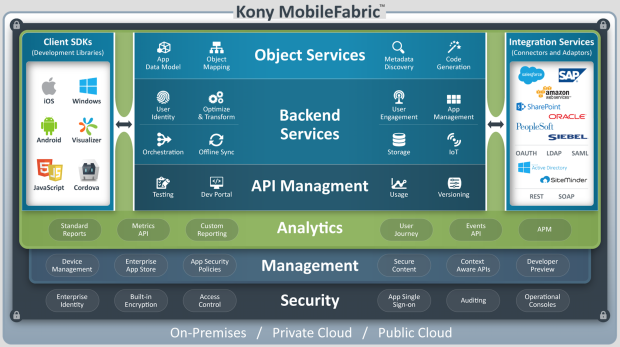
Figure 1: Overview of Kony Fabric
Figure 1 shows you the overall architecture of Kony Fabric, including the client-side SDKs that are available for applications to connect to Kony Fabric. The JavaScript client SDK of Kony Fabric helps you develop the News and Weather application that is discussed in this user guide.
In the user guide, Kony Fabric for News And Weather App, we learned how we could use Kony Connectors to quickly expose XML, SOAP, JSON, SAP and other back end services with Kony Fabric to create mobile optimized, REST based services.
Now we will use Kony Visualizer 7 Enterprise to connect a multichannel application to Mobile Fabric. In this document, we will do the following:
- Download the Visualizer News and Weather Sample application from GitHub
- Import the application into Visualizer 7 Enterprise
- Configure a sample application to connect to our News and Weather services that we published in the Kony Fabric for News and Weather App guide using Kony Fabric
- Demonstrate how Visualizer 7 Enterprise helps you build Native iOS, Native Android, Native Windows, BlackBerry, , Mobile Web, and DesktopWeb apps from a single code base and run an application in the Android emulator.
Audience
The manual is intended for developers and IT professions using or intending to use Kony Visualizer and Kony Fabric to build, integrate, and deploy mobile applications across multiple channels, including Native iOS, Native Android, Windows, BlackBerry, Mobile Web, and Desktop Web. Developers should be familiar with JavaScript.
Prerequisites
Before you review the document, we assume that:
- You can access a Kony Fabric server that has the sample News and Weather application installed. If you do not have access to Kony Fabric, enroll in a 90-day trial at http://www.kony.com/products/konyfabric/trial.
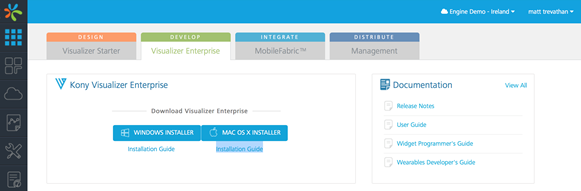
- You have access to Kony Visualizer Enterprise 7 and a configured Android emulator that runs with your installation of Visualizer. If you do not have Visualizer Enterprise 7, refer to the preceding paragraph to enroll in a trial of Kony Fabric. You can download Visualizer 7 Enterprise from the Kony Fabric console by clicking on the Visualizer Enterprise tab as shown below:
For additional information on installing Visualizer 7 Enterprise, and configuring the Android emulator and other emulators for Visualizer, refer to the following links:
-
You have reviewed the Kony Fabric for News And Weather App user guide that provides an overview of all the News and Weather Kony Fabric services. We also assume that you have published the News and Weather application to your Kony Fabric runtime environment. The publication process is described in the Kony Fabric for News and Weather App user guide.
Downloading and Importing the News and Weather Visualizer Application
Kony maintains the most recent version of the News and Weather app on GitHub. To download and import the News and Weather application into your Visualizer 7 Enterprise IDE, follow these steps:
- Enter https://github.com/kony/News-and-Weather in your browser, and click on “Clone or Download”(shown as 1 in figure above. The application downloads to your local drive. If you download the application, you will need to unzip the application. A root directory called News-and-Weather-master is created. Take note of the subdirectory, News-and-Weather. The subdirectory contains the working project code that we will import into Visualizer.
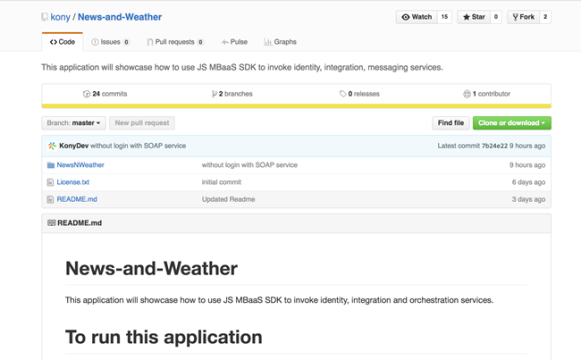
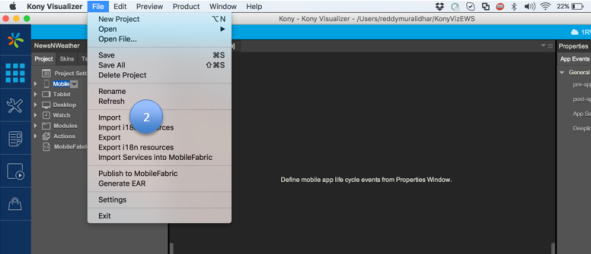
- Click File > Import(shown as 2 in the figure above) to start the import process.
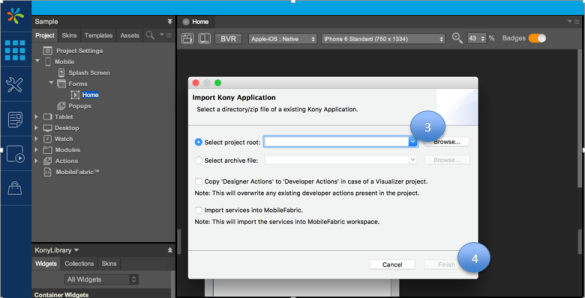
- Click Browse ( as shown in 3 in figure above) to select the NewsAndWeather folder from the unzipped file to import into your workspace. Click Finish (shown as 4 above) to complete the import of the project.
Configuration of Visualizer Client Application
In the last section, we downloaded the application and imported it into Visualizer, now we are going to configure the application to communicate with our Kony Fabric services. Kony Fabric requires an App Key, App Secret and Service URL for establishing a secure connection to your services. If you don’t have your AppKey, App secret, and Service URL, the following directions will show you how to find them on your Kony Fabric App and add them to your Visualizer app. If you haven’t published your services, please refer to the “Kony Fabric for News And Weather App” guide for configuring and deploying your services before proceeding. You will need the App Key, App Secret and Service URL to configure your sample app to communicate to Kony Fabric. Follow the steps below to configure the client application with the published Kony Fabric services.
- Log in to your account at manage.kony.com. Select the apps tab. You will see the News and Weather app in the console. ( as shown in figure 3 below).
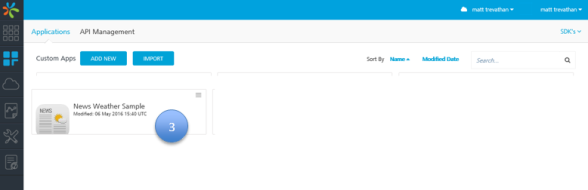
- Open the app and click on the modules folder in the left side navigation. The Kony SDK contains all the helper classes that connect your application to Kony Fabric. In the sample app, config.js holds the parameters we will need to connect to Kony Fabric.
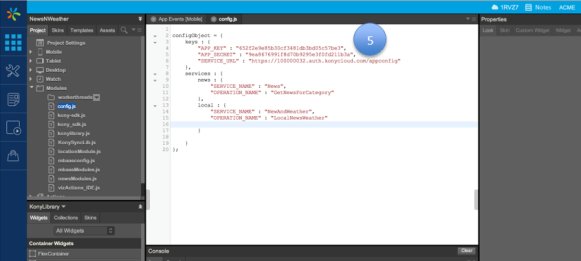
- Open the “config.js” file in the Visualizer editor The “keys” section (shown as 5 above) will need to be updated with the “Appkey”, “AppSecret” and “ServiceURL” of the published application in Kony Fabric. ( “Appkey”, “AppSecret” and “ServiceURL” are provided when the application is published in Kony Fabric)
That’s it! We are done with the client-side configuration that is needed to run the News and Weather application.
Deploying and Executing the News -and Weather Application
This section provides the details of deploying the News and Weather application in Android emulator. To launch and run the application, follow these steps:
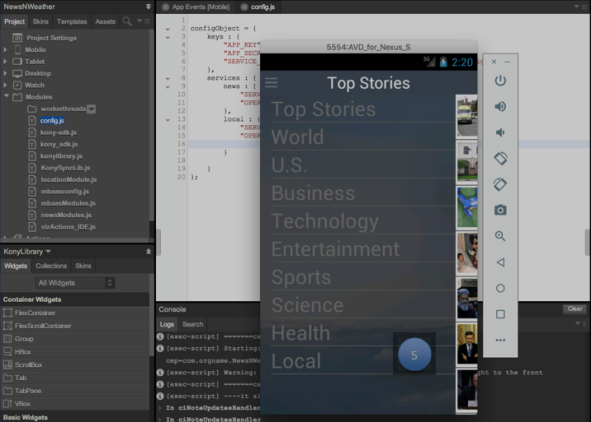
- After the project is successfully imported, it will be compiled. Click on “Project -> Run As -> TestEmulator -> Native” (shown as 1 below) and this will start and launch the application in the configured emulator.
Note: We assume you have already configured the Android emulator. For information on steps to create and configure the emulator, refer to http://docs.kony.com/konylibrary/visualizer/viz_enterprise_install_win/Default.htm#Install_and_Configure_Emulators.htm%3FTocPath%3D_____6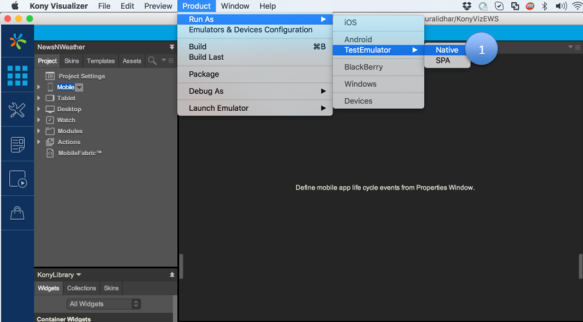
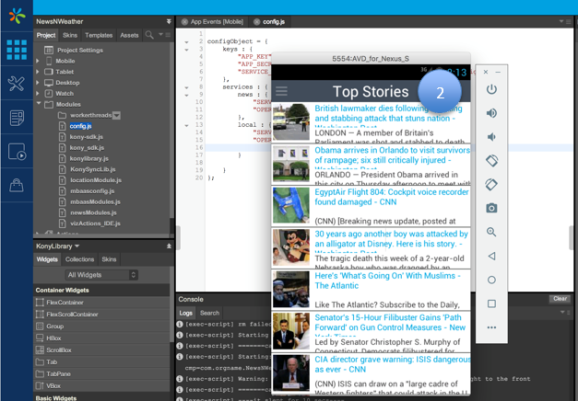
In the following figure, the emulator is called TestEmulator. - Once the application is successfully launched in the emulator, the Top Stories screen (2) is displayed.
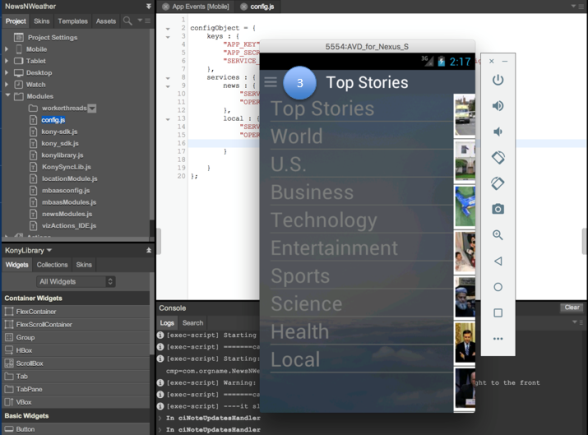
- Click on the hamburger/three-line menu (3) on the top left corner of the application in the emulator to display the menu options.
-
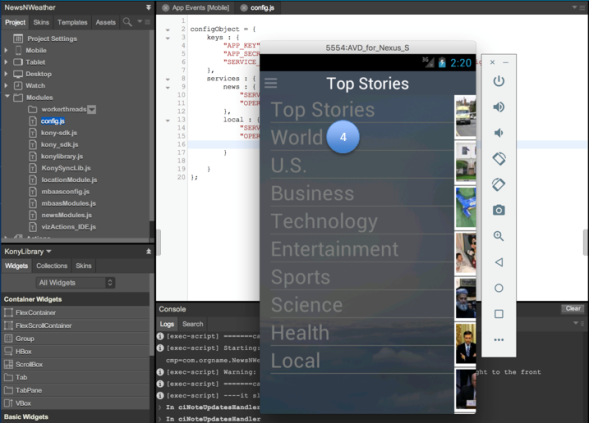
Click on “World” (shown as 4 in figure below) to display the World news. This data is displayed by invoking Kony Fabric’s news service. The category value ( needed by the Kony Fabric service to retrieve the news) that is passed to the “GetNewsForCategory” operation of this service is “W” because of which world news is retrieved.
- Click on Local (shown as 5 in figure below). The Local screen appears and displays the current weather, weather forecast and the local news. Using the latitude and longitude, the application invokes the NewsandWeather orchestration service to retrieve the requested information.
| Rev | Author | Edits |
| V8 | PG | PG |
| Copyright © 2017 Kony, Inc. All rights reserved. |