
Quantum Fabric Analytics Mobile App
The Quantum Fabric mobile app is published to both iOS App Store and Android Play Store and is available to any users of the Quantum Fabric cloud console. With the Quantum Fabric mobile app you can manage your Quantum Fabric accounts and access and run standard and custom reports that are accessible from the Quantum Fabric cloud console.
NOTE: Support to the Quantum Fabric Analytics Mobile App is deprecated from March 2020 onwards. The new Quantum App serves you with all the current features of the previous app version along with additional functionality.
Sign In to Quantum Fabric
To sign into the Quantum Fabric Analytics mobile app, do the following:
- Launch the Quantum Fabric app.
- To install the new version app from the app store, click OPEN QUANTUM APP.
IMPORTANT: You can continue to use the same email address and password to use the Quantum App version.
- To continue with the current app version. click the CLOSE button.
The sign in screen for Quantum Fabric appears.
- Enter your username and password and press SIGN IN.
The banner appears with the app depreciation details and the new app version link to the Quantum App.
The Home screen appears.
Switch Accounts
If you have access to multiple Quantum Fabric cloud accounts, you can switch between the accounts.
To switch accounts, do the following:
- Press the accounts menu at the top of the Home page.
- Select an account.
A menu of accounts appears.
How to Use Standard Reports
The Quantum Fabric mobile app provides all of the standard metrics and built-in reports for Quantum Fabric. For information about standard reports, see Standard Reports and Analytics Guide.
To use Standard Reports, do the following:
- Press Standard Reports.
- Select a report
- Select the filter criteria for the report and click Generate.
- Click Favorites (star icon) to save the report as a favorite.
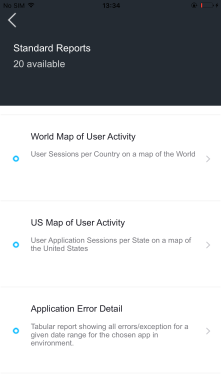
The list of standard reports appears. The number of standard reports that are available is shown at top of screen. The number of available reports is available after a user’s first visit to the Quantum Fabric Analytics.
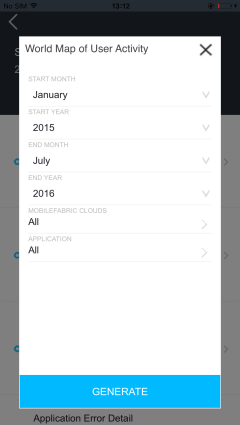
The filter criteria pop-up appears .
Quantum Fabric generates and opens the report. The report is available in landscape mode only.
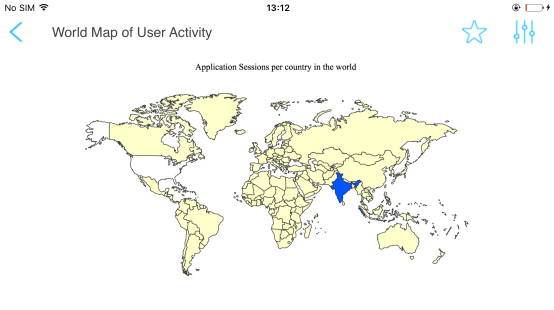
Saving a report as a favorite saves the filter criteria that Quantum Fabric uses to generate the report.
How to Use Custom Reports
The Analytics mobile app provides all of the custom reports that are available on the Quantum Fabric account. For information about capturing custom metrics from an application and building reports, see Custom Metrics and Reports Guide.
To use Custom Reports, do the following:
- Press Custom Reports.
- Select a report.
- Select the filter criteria for the report and click Generate.
- Click Favorites (star icon) if you want to save the report as a favorite.
The list of reports that appears are the custom reports that are available to you for the Quantum Fabric account in private folders. Click Shared to view the list of custom reports that are available in shared folders. The number of custom reports that are available is shown at top of the screen.
The filter criteria pop-up appears.
Quantum Fabric generates and opens the report. The report is available in landscape mode only.
Saving a report as a favorite saves the filter criteria that Quantum Fabric uses to generate the report.
How to Use Favorites
You can save often-used filter criteria as favorites and avoid having to set filter criteria each time that you use the report. You can save any standard or custom report as a favorite once it is rendered.
Manage Users
Manage Users is available for administrative users of a Quantum Fabric cloud account. Use Manage Users to change a user’s level of access to the cloud environments or to invite users to the Quantum Fabric cloud. Manage Users shows a list of the users that have access to the Quantum Fabric account and the role of each user. For more information about user management, see User Management.
To edit a user’s level of access to an environment, do the following:
- Select a user.
- Press an environment.
- Select an access option.
- If you do not want to grant the user access to the environment, click No Access.
- Click Save.
The user account screen appears. You cannot change the email address or role of a user from the Quantum Fabric mobile app.
A popup appears with the access options. You can grant the user full access or deny the user access to the environment.
To add a user to the cloud, do the following:
- Press Add (the plus icon).
- When you are prompted to specify the user role, select a role for the user.
- When you are prompted to enter valid details, enter the email address of the user.
- Press an environment.
- Select Full Access.
- If you do not want to grant the user access to the environment, press No Access.
- Press Send.
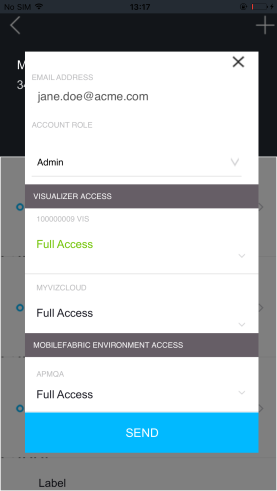
The invite user screen appears.
The available roles are Admin, Billing, and Member.
Now you can grant the user access to the configured environments for Visualizer and Quantum Fabric.
A pop-up appears with the access options. You can grant the user full access to the environment.
Quantum Fabric saves the user account and sends an invite email to the user.