
Organizing and Moving Application Elements
As you add forms, modules, and other items to your application, you may want to organize related application elements into groups, or copy and move them. You can create application groups for related forms and other elements, then drag and drop forms and elements from one application group to another, or copy individual application element to the Clipboard library.
You can then move application elements to an application group or collection, or export them. You can also save an application group to a collection, or export and import application groups between projects.
In addition to including forms, modules, and related elements in your project, you can make a variety of related resources such as test scripts, specifications, and HTML files available in your project by adding them to the Other Resources folder in Project Explorer.
The following topics provide additional information about using application groups, the Clipboard library, and the Other Resources folder:
Add an Application Group to a Collection
Copy an Application Element to the Clipboard Library
Export and Import an Application Group
Adding Other Resources to Your Project
Create an Application Group
You can create a new application group for mobile, tablet, desktop or watch channels. Kony Visualizer automatically creates an a group with the same name for the form's associated modules and controllers.
To create an application group in a Kony Reference Architecture project:
- In Project Explorer, expand the Mobile, Tablet, Desktop, or Watch node where you want to add the application group.
- Right-click the Forms node or an existing application group, and select New Group. Kony Visualizer creates a new application group within the Forms node or application group, and adds a corresponding group to the Controllers node.
For mobile, tablet, and desktop channels, Kony Visualizer also adds a corresponding group to the require folder of the Modules node. For the watch channel, Kony Visualizer adds a corresponding group to the Watch folder of the Modules node.
You can nest application groups and include a variety of elements within the group, including forms and components. You can also move elements between groups by dragging and dropping them from one group to another.
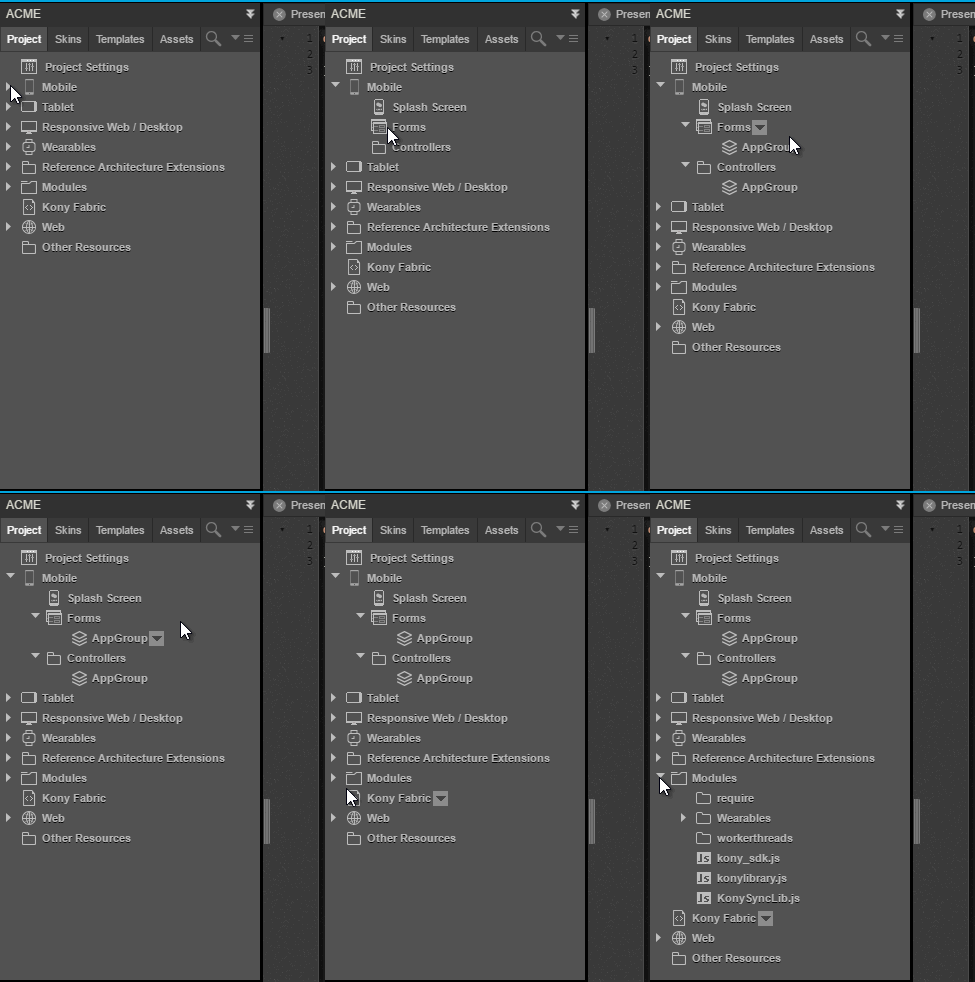
To create an application group in a Free Form JavaScript project:
- In Project Explorer, expand the Mobile, Tablet, Desktop, or Watch node where you want to add the application group.
- Right-click the Forms node or an existing application group, and select New Group. Kony Visualizer creates a new application group within the Forms node or application group, and adds a corresponding group to the Modules node. For the watch channel, Kony Visualizer adds the corresponding group to the Watch folder of the Modules node.
You can nest application groups and include a variety of elements within the group, including forms and components. You can also move elements between groups by dragging and dropping them from one group to another.
Add an Application Group to a Collection
Once you have created an application group, you can make it available to all of your application projects by adding it to a collection.
To add an application group to a collection:
- In Project Explorer, right-click the application group that you want to add to a collection, and hover over Add to Collection.
- Hover over the library that contains the collection, and click the collection where you want to save the component. If the library or collection does not exist, you can create the library or collection.
If any elements of the application included bundled services, Kony Visualizer prompts you to select and package the services. When you use the application group in an application, Kony Visualizer adds the services to the application.
Copy an Application Element to the Clipboard Library
You can make an individual application element available to other application projects by copying it to the built-in Clipboard library. You can copy a single form, multiple forms, components, code modules, and masters created in earlier versions of Kony Visualizer. When you copy forms, any associated templates or controller modules are copied with them.
Once you have copied an application element to the Clipboard library, you can insert it into an application group, move it to a collection, or export it to your computer, network, or the cloud.
Note: There are some restrictions on what can be copied to the Clipboard library, depending on the type of application project. When you copy an application element to the Clipboard library from a Kony Reference Architecture project, you cannot insert into or move it to a Free Form JavaScript project. Also, when you copy a form from a Free Form JavaScript project to the Clipboard library, named actions and popups are not included. For more information on types of Kony custom application projects, see Types of Projects.
To copy an application element to the Clipboard library:
- In Project Explorer, right-click the form, component, template, or code module, and then select Copy to Clipboard Library. Kony Visualizer displays the Create New Library Component dialog box.
- In the Create New Library Component dialog box, specify a name and description for the application element, and then click OK. Kony Visualizer adds the application element to the Clipboard library in Library Explorer.
To insert an application element in the Clipboard library into an application group:
- In Library Explorer, select the My Libraries tab and navigate to the Clipboard library.
- For a form, application group, or component, right-click the application element and then hover over Insert Into. For a code module, right-click the application element and then hover over Merge Into.
- Select the application group where you want the application element to be inserted. Kony Visualizer inserts the application element into the application group.
To move an application element in the Clipboard library to a collection:
- In Library Explorer, select the My Libraries tab and navigate to the Clipboard library.
- Right-click the application element, and then hover over Move To.
- Select the library and collection where you want the application element to be moved. Kony Visualizer moves the application element to the collection.
To export an application element in the Clipboard library to your computer, network, or the cloud:
- In Library Explorer, select the My Libraries tab and navigate to the Clipboard library.
- Right-click the application element, and then hover over Export. Kony Visualizer displays the Save As dialog box.
- Navigate to the location where you want to export the application element, and then click Save. Kony Visualizer exports the application group to that location.
Export and Import an Application Group
You can share application groups between projects without adding them to a collection by exporting and importing them. For example, if you have created an application group in your project and want to use it in a different project, you can export it to your computer, network, or the cloud, and then import it into another project.
To export an application group:
- In Project Explorer, right-click the application group, and then select Export. Kony Visualizer displays the Save As dialog box.
- Navigate to the location where you want to export the component, and then click Save. Kony Visualizer exports the application group to that location.
The exported application group includes all forms and corresponding modules associated with the application group, including any nested folders.
To import an application group:
- In Project Explorer, expand the Mobile, Tablet, Desktop, or Watch node where you want to add the application group.
- Right-click the Forms node or an existing application group, and select Import. Kony Visualizer displays the Import Forms dialog box.
- Click Browse to navigate to the location of the application group, select the application group, and then click Import. Kony Visualizer adds the application group and its associated application items to your project.
The imported application group includes all forms and corresponding modules associated with the application group, including any nested folders.
Adding Other Resources to Your Project
In addition to including forms, modules, and related elements in your project, you can add a variety of related resources such as test scripts, specifications, and HTML files. These resources are listed in the Other Resources folder in Project Explorer.
To add resource files to your project:
- In Project Explorer, right-click the Other Resources folder and select Resource Location. Kony Visualizer opens the otherresources folder on your computer.
- Drag and drop the files you want to add to the project to the otherresources folder.
- To view the list of resource files in Kony Visualizer, right-click the Other Resources folder and select Refresh.
To view or edit a resource file in Kony Visualizer:
- In Project Explorer, open the Other Resources folder.
- Select the file name, or right-click the file name and select Open. Kony Visualizer displays the file in an editable window for the following file types:
Text (.txt)
Gherkin (.feature)
JSON (.json)
XML (.xml)
Java (.java)
Python (.py, .pw)
HTML (.html, .htm)
Javascript (.js)
CSS (.css)
Swift (.swift)
Plist (.plist)
Kony Visualizer opens files with other file types using the default application associated with the file type.
| Rev | Author | Edits |
| 8.0 | SHS | SHS |
| Copyright © 2013 Kony, Inc. All rights reserved. |