
Configuring the Framework
Before using Kony Fabric APIs for iOS, you must configure Kony iOS SDK into your IDEs, such as Xcode. Configuring the Kony iOS SDK involves the following steps:
- Configuring KonySDK.framework to Project
- Adding Framework Dependencies
- Installing com.kony.KonySDK.docset in Xcode
Configuring KonySDK.framework to Project
To configure KonySDK Framework to project, follow these steps:
- Extract the downloaded
kony-ios-sdk.zipfile. - Drag
KonySDK.frameworkto your Framework group in Xcode project.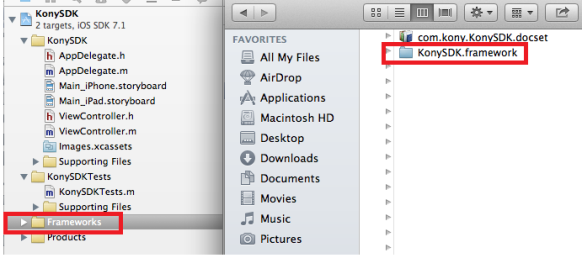
- Select the Copy items into destination group's folder check box. Make sure it adds these libraries to your main target.
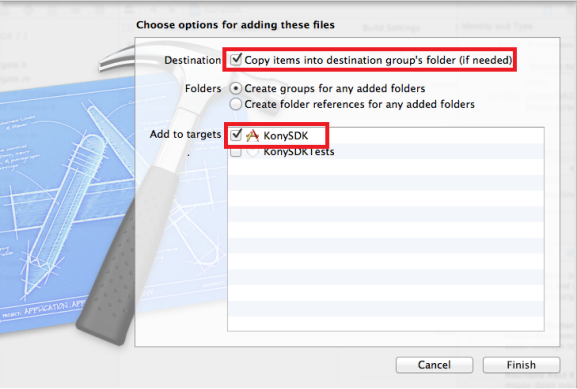
- Click Finish.
Adding Framework Dependencies
You need to link your binaries with the following libraries.
To configure binaries, follow these steps:
- In the Project Navigator, select your project.
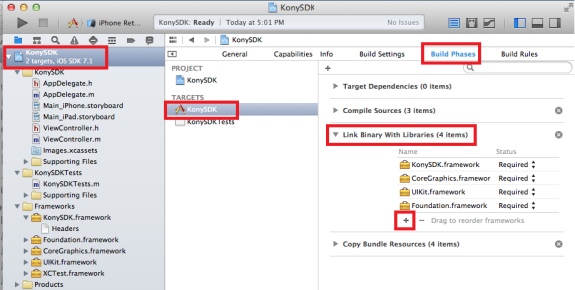
- In the Editor, select your app target, navigate to Build Phases > Link Binary With Libraries and then click the Add (+) button.
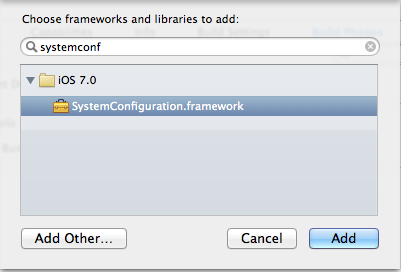
- In the Choose frameworks and libraries to add dialog, type systemconf.
- Select the
SystemConfiguration.framework, and then click Add. The system adds the selected frameworks to the project under the Link Binary With Libraries section. - Add the
MobileCoreServices.frameworkby following Step 3 through Step 4.The system adds the selected frameworks to the project under the Link Binary With Libraries section.

-
Now, add the remaining frameworks (shown in the following image) under the Embedded Binaries section in the General tab.
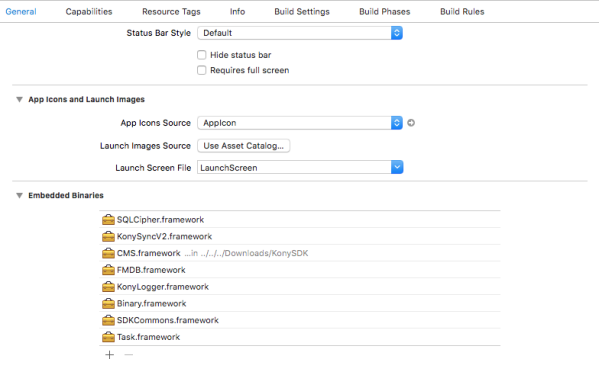
By doing so, these files will be listed in Link Binary With Libraries and Embedded Frameworks sections in the Build Phases tab.
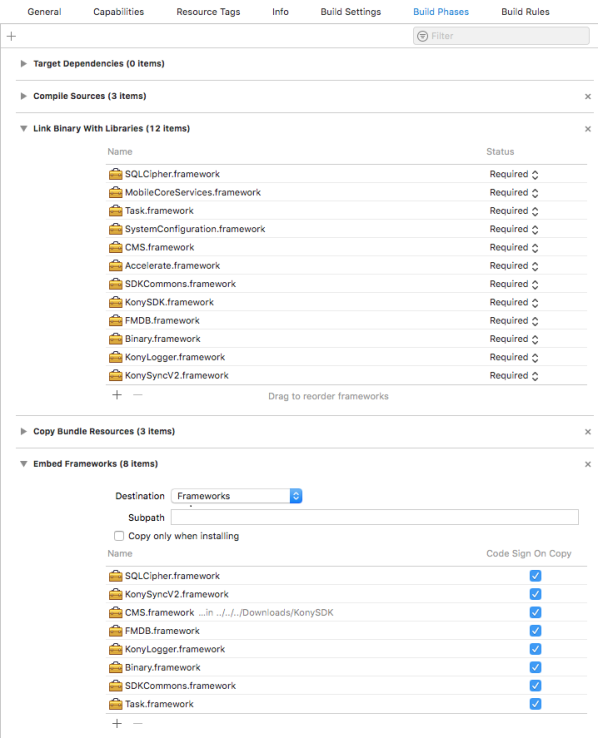
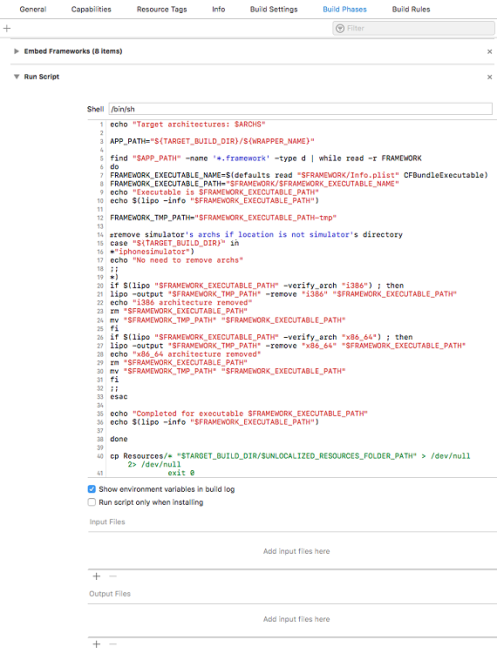
- For example, if you want to release an app to the AppStore and not include i386 and x86_64 architectures, you must add a script before building your project. To do so, follow these steps.
- Under the Build Phases tab, click the Add (+) button and select New Run Script Phase from the list. The Run Script section appears.
- Type the following script in the text box.
echo "Target architectures: $ARCHS"

APP_PATH="${TARGET_BUILD_DIR}/${WRAPPER_NAME}"

find "$APP_PATH" -name '*.framework' -type d | while read -r FRAMEWORK
do
FRAMEWORK_EXECUTABLE_NAME=$(defaults read "$FRAMEWORK/Info.plist" CFBundleExecutable)
FRAMEWORK_EXECUTABLE_PATH="$FRAMEWORK/$FRAMEWORK_EXECUTABLE_NAME"
echo "Executable is $FRAMEWORK_EXECUTABLE_PATH"
echo $(lipo -info "$FRAMEWORK_EXECUTABLE_PATH")

FRAMEWORK_TMP_PATH="$FRAMEWORK_EXECUTABLE_PATH-tmp"
#remove simulator's archs if location is not simulator's directory
case "${TARGET_BUILD_DIR}" in
*"iphonesimulator")
echo "No need to remove archs"
;;
*)
if $(lipo "$FRAMEWORK_EXECUTABLE_PATH" -verify_arch "i386") ; then
lipo -output "$FRAMEWORK_TMP_PATH" -remove "i386" "$FRAMEWORK_EXECUTABLE_PATH"
echo "i386 architecture removed"
rm "$FRAMEWORK_EXECUTABLE_PATH"
mv "$FRAMEWORK_TMP_PATH" "$FRAMEWORK_EXECUTABLE_PATH"
fi
if $(lipo "$FRAMEWORK_EXECUTABLE_PATH" -verify_arch "x86_64") ; then
lipo -output "$FRAMEWORK_TMP_PATH" -remove "x86_64" "$FRAMEWORK_EXECUTABLE_PATH"
echo "x86_64 architecture removed"
rm "$FRAMEWORK_EXECUTABLE_PATH"
mv "$FRAMEWORK_TMP_PATH" "$FRAMEWORK_EXECUTABLE_PATH"
fi
;;
esac

echo "Completed for executable $FRAMEWORK_EXECUTABLE_PATH"
echo $(lipo -info "$FRAMEWORK_EXECUTABLE_PATH")

done

cp Resources/* "$TARGET_BUILD_DIR/$UNLOCALIZED_RESOURCES_FOLDER_PATH" > /dev/null 2> /dev/null
exit 0
Note: This step should be the final step under the Build Phase.
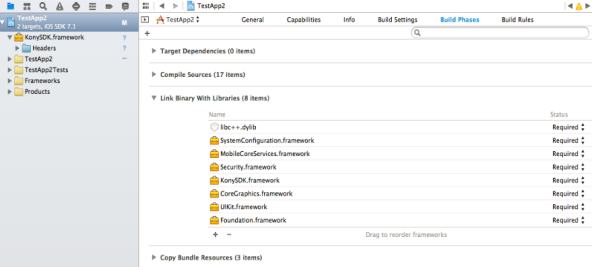
- Add dependent libraries to your project, shown below:
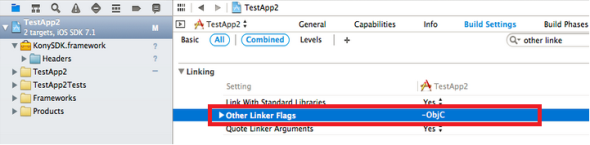
- Add linker flags to your project , shown below:
Installing com.kony.KonySDK.docset in Xcode
Kony provides Xcode docset to search and browse API documentation within Xcode. The docset also provides quick help in the code completion popup.
To view Kony iOS Docset help in native format, click com.kony.KonySDK.docset.
To install the com.kony.KonySDK.docset in Xcode, follow these steps:
- Shutdown Xcode.
- Copy
com.kony.KonySDK.docsetfolder fromKonySDKfolder. - Navigate to
~/Library/Developer/Shared/Documentation/DocSets/and then pastecom.kony.KonySDK.docsetfolder. - Restart Xcode.
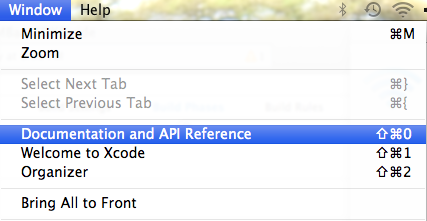
- In Xcode, click Window menu, and then click Documentation and API Reference.
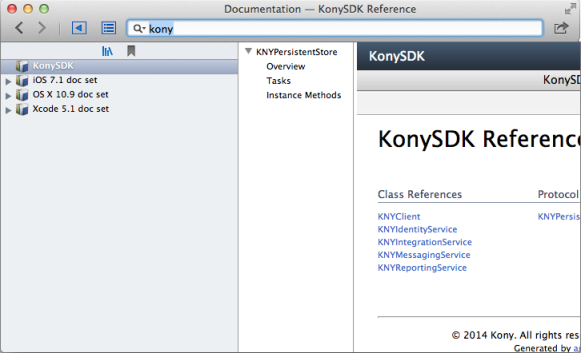
- In the Search box, type Kony, and then press Enter. The system displays the configured Docset.
| Copyright © 2020 Kony, Inc. All rights reserved. |